Design and print
QR code printing: size, PNG and SVG
Print QR codes that are easy to scan. Choose PNG or SVG, keep the white border and test your design before printing a batch.
Choose the file for your next step
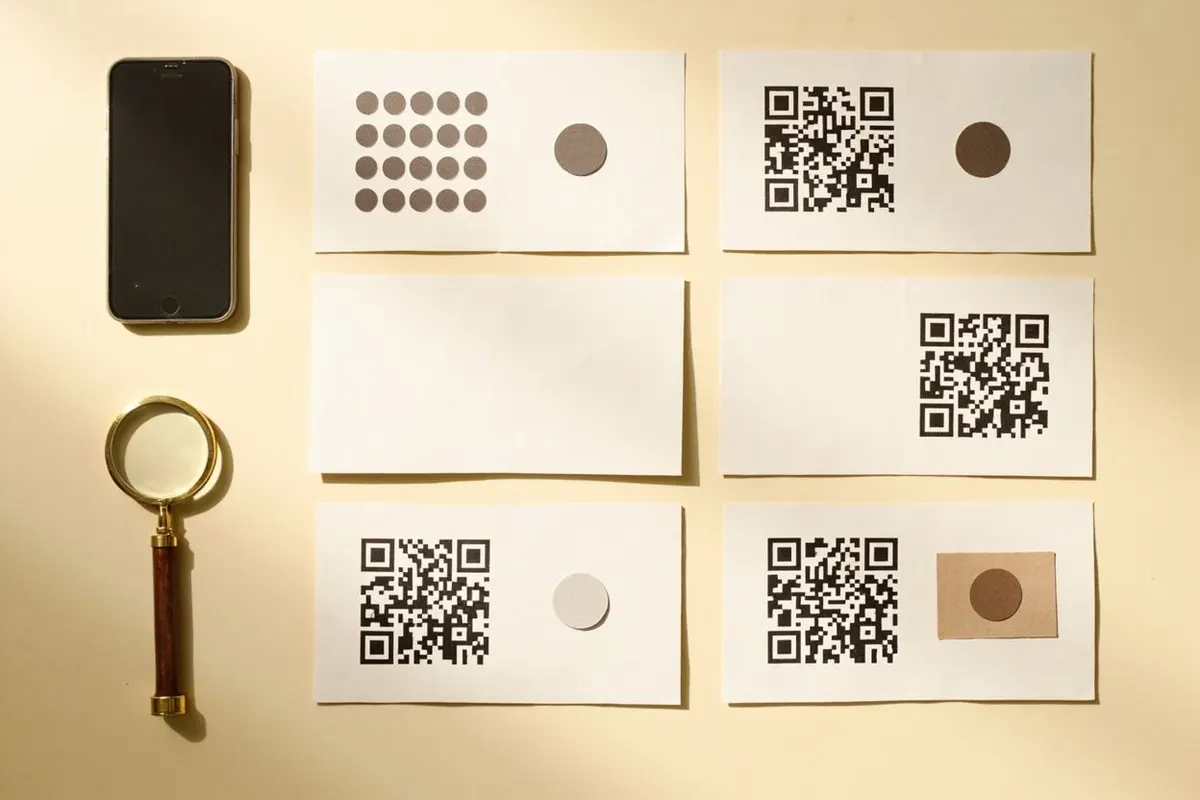
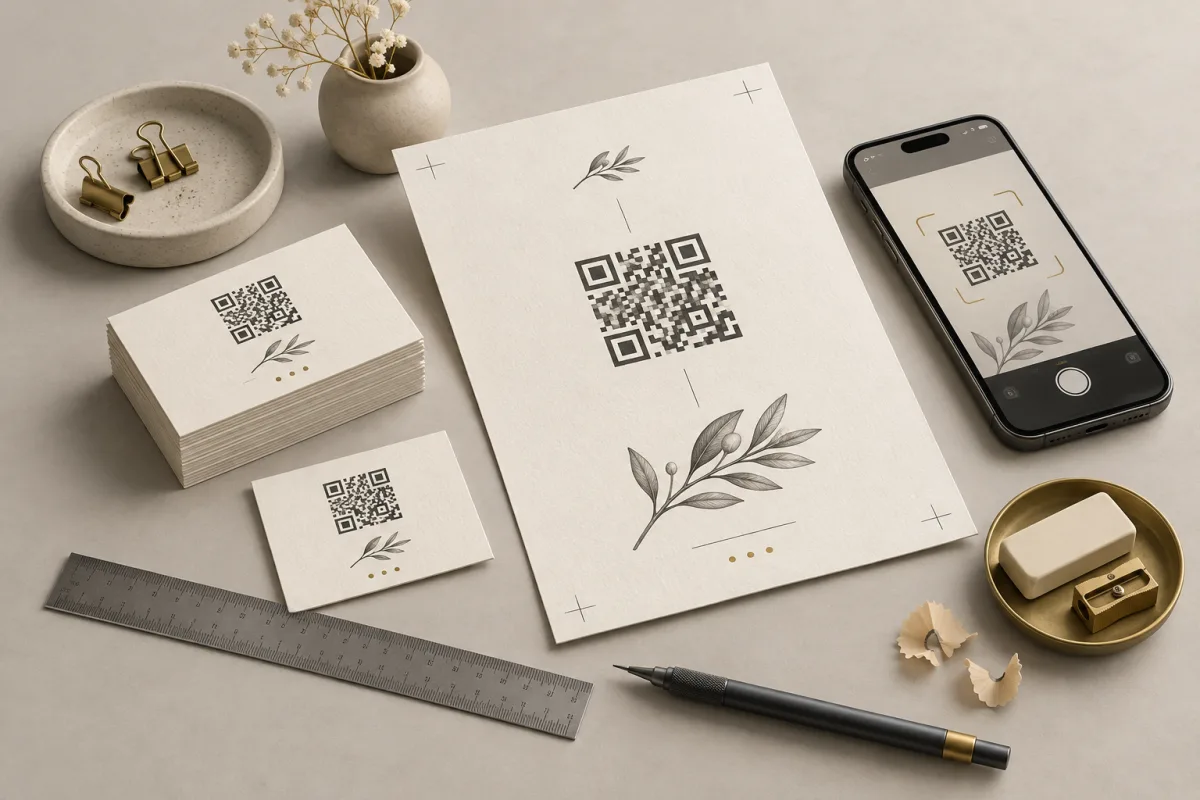
A QR that scans on screen may fail on a small card. Size, contrast, paper and nearby artwork affect the printed result. Start with the original downloaded image, not a screenshot, and keep an untouched copy.
Choose SVG when your design tool accepts it: its shapes stay sharp as you resize them. Choose PNG for software that needs an image file. QRToolset exports PNG anywhere from 200 to 4,000 pixels, with one-tap presets at 512, 1024, 2048 and 4,000. Enlarging a small PNG will not restore missing detail, so export at the size you need.
The white border is part of the code
The blank border around a QR is its quiet zone. A standard QR needs a clear margin four modules wide on every side. A module is one small square in the code, so the margin grows with the printed code.
QRToolset includes this border in every export. Keep it intact and place captions, frames and other artwork outside it. Give the whole image clear space in your layout.
Source: DENSO WAVE’s quiet-zone guidance.
Size the printed result, not just the file
Choose the physical size for the setting. A card held in a hand and a poster scanned from a distance need different treatment. Dense codes also need more room. Consider the printer, reader and viewing distance rather than relying on one minimum size.
For example, a 1024-pixel image printed two inches wide gives 512 pixels per inch before resampling. That is a resolution calculation, not a scan guarantee. Check the final PDF or printer proof for blurred edges and test it at the intended size.
Keep the design simple around the QR
Keep dark QR squares on an opaque white background. Preserve the square shape and avoid filters, stretching or artwork over the code. The generator keeps the QR background white in both light and dark mode.
Add an action label outside the border, such as “View the menu” or “Join guest Wi-Fi.” Include a readable link or another way to complete the task where practical. People should know what a scan will do.
Approve one physical copy first
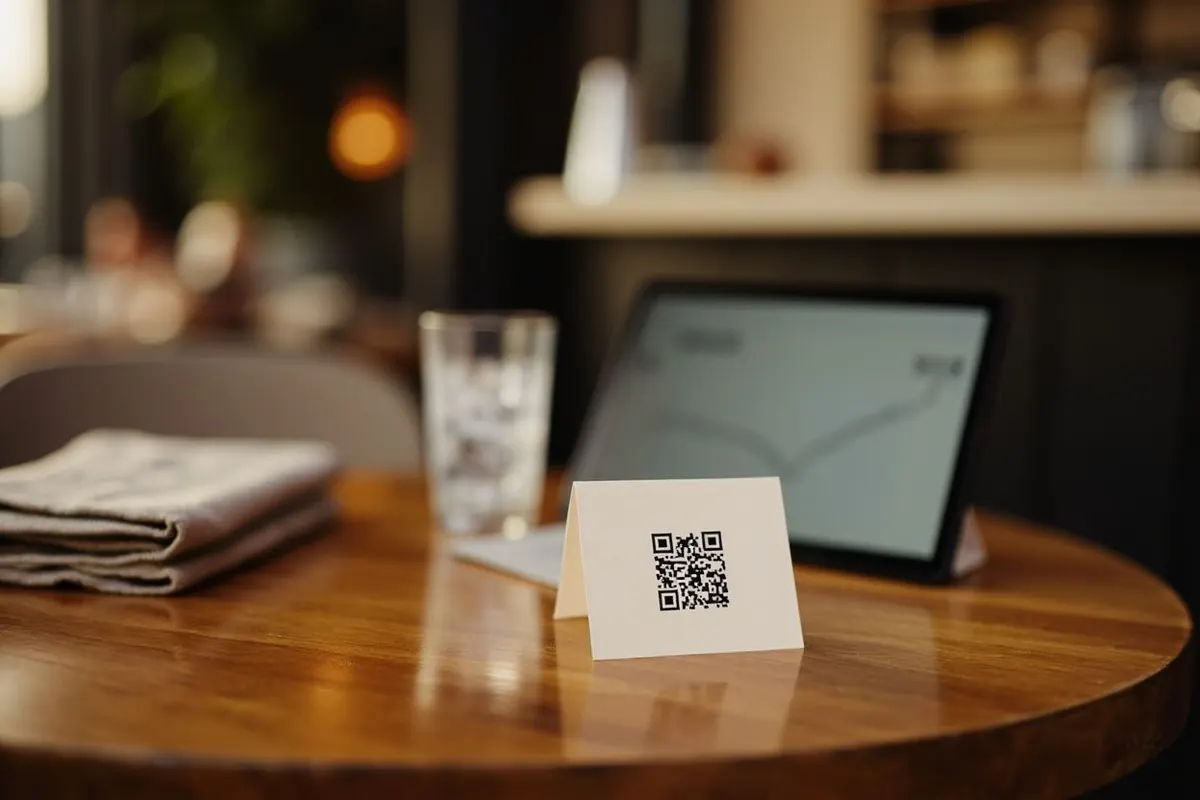
Test one physical copy before ordering a batch. Use the actual paper, holder and location. A good digital preview cannot reveal glare, weak print contrast or a code placed too far away.
- Print at the intended size with the intended paper or label stock.
- Place it in its holder or final location. Check the lighting, viewing angle and any glare.
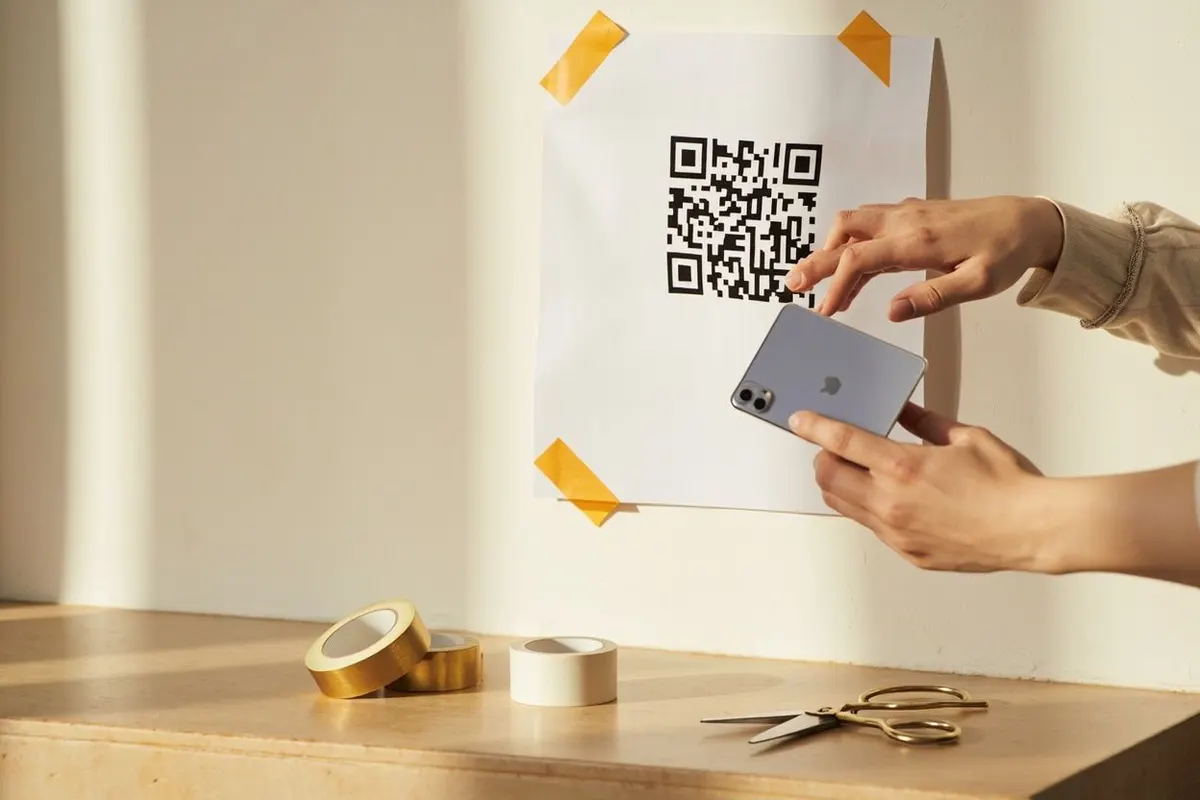
- Use more than one phone where possible and scan from the distance a customer is likely to stand.
- Open the destination and verify its content. A successful decode is only half the check.
- If scanning is unreliable, enlarge the QR or simplify its surroundings, then print and test a new proof.
Common questions
What size should a printed QR code be?
The common rule of thumb is a tenth of the scanning distance: about 3 cm for a code read at arm’s length, and roughly 30 cm for one read from 3 m away. Add the quiet zone on top of that, and test the actual printed piece rather than the file on screen.
Should I use PNG or SVG for printing?
SVG for anything a printer or designer will resize, because it stays sharp at any dimension. PNG for a fixed placement where you already know the final size. QRToolset exports PNG from 200 to 4,000 pixels, plus PDF and EPS for print workflows.
Why does my QR code stop scanning after printing?
Usually the quiet zone was cropped, the contrast is too low, or the code was placed over a fold or a glossy varnish. Keep a clear margin of at least four modules, use a dark code on a light background, and approve one physical proof before the full run.
Can I print a QR code in colour?
Yes, provided the code stays darker than its background with strong contrast. Inverted codes, light-on-dark, fail on many scanners. Print a test copy on the final stock, because ink spread on uncoated paper closes the gaps between modules.