Everyday connections
How to make a Wi-Fi QR code for guests
Help guests connect without typing a password. Make a Wi-Fi QR card, check the connection and print a copy that scans.
Start with the network you want to share
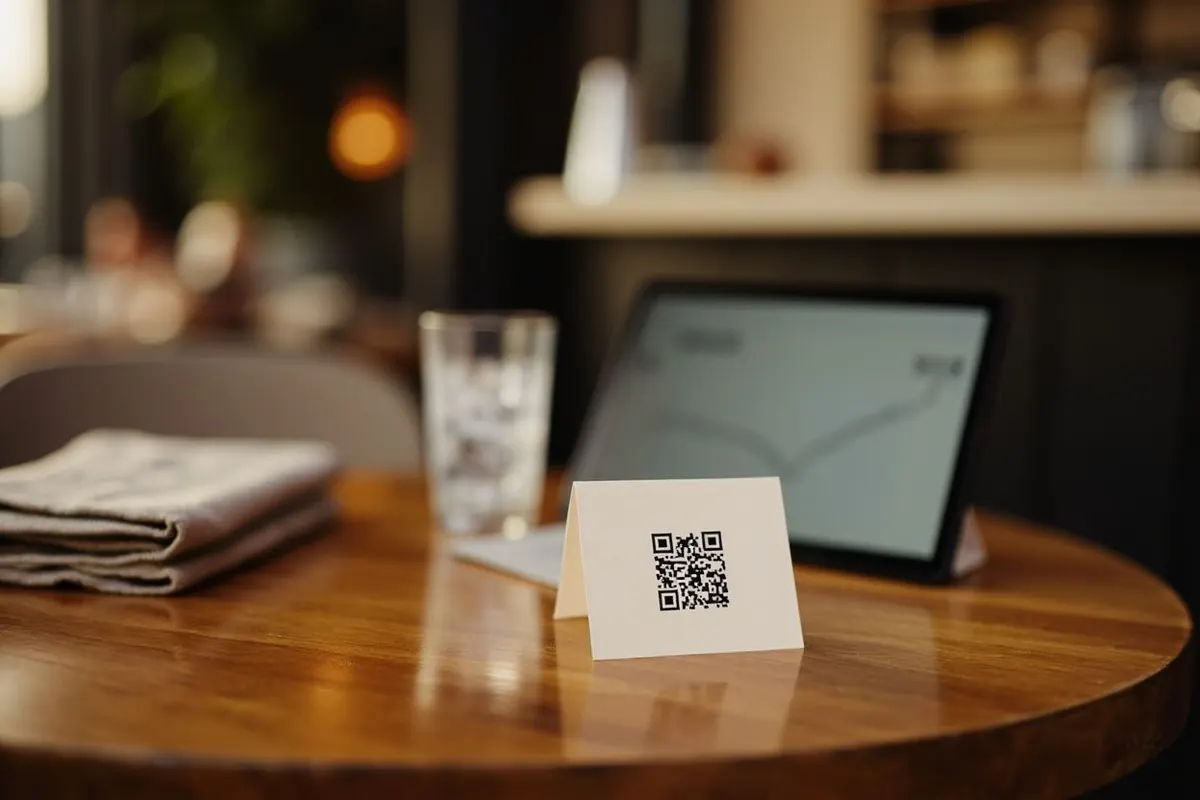
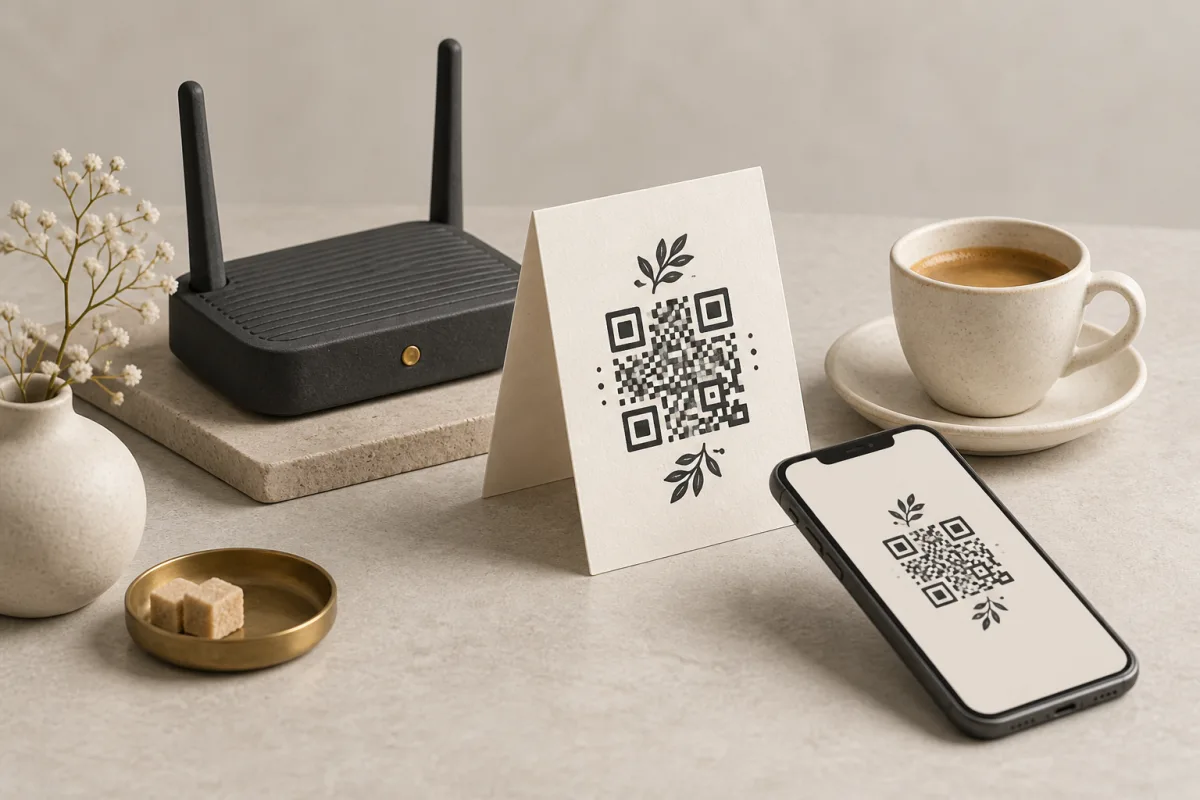
A Wi-Fi QR code saves guests from typing a password. They scan the card, check the network name and accept the connection prompt on a compatible phone. It is useful at home, in guest rooms and beside a café counter.
Find the network name, password and security setting in your router settings or router app. A sticker may show an old password. Use a guest network when you have one, so visitors do not need access to your main network.
Make the QR on your phone
Open the Wi-Fi generator and enter the details exactly as they appear. QRToolset handles punctuation for you. Do not add quotes or backslashes around the name or password.
- Enter the network name (SSID). Preserve its spaces, punctuation and capital letters.
- Choose the security type that matches the network. WPA / WPA2, WEP and no password are available; choosing a different setting does not change your router’s security.
- Enter the password. Use the visibility button to check it, and enable Hidden network only if the network is actually hidden.
- Wait for the live preview, then download PNG for sharing or SVG for a printed card. The Share button uses your phone’s sharing options when available.
Test a new connection, not a remembered one
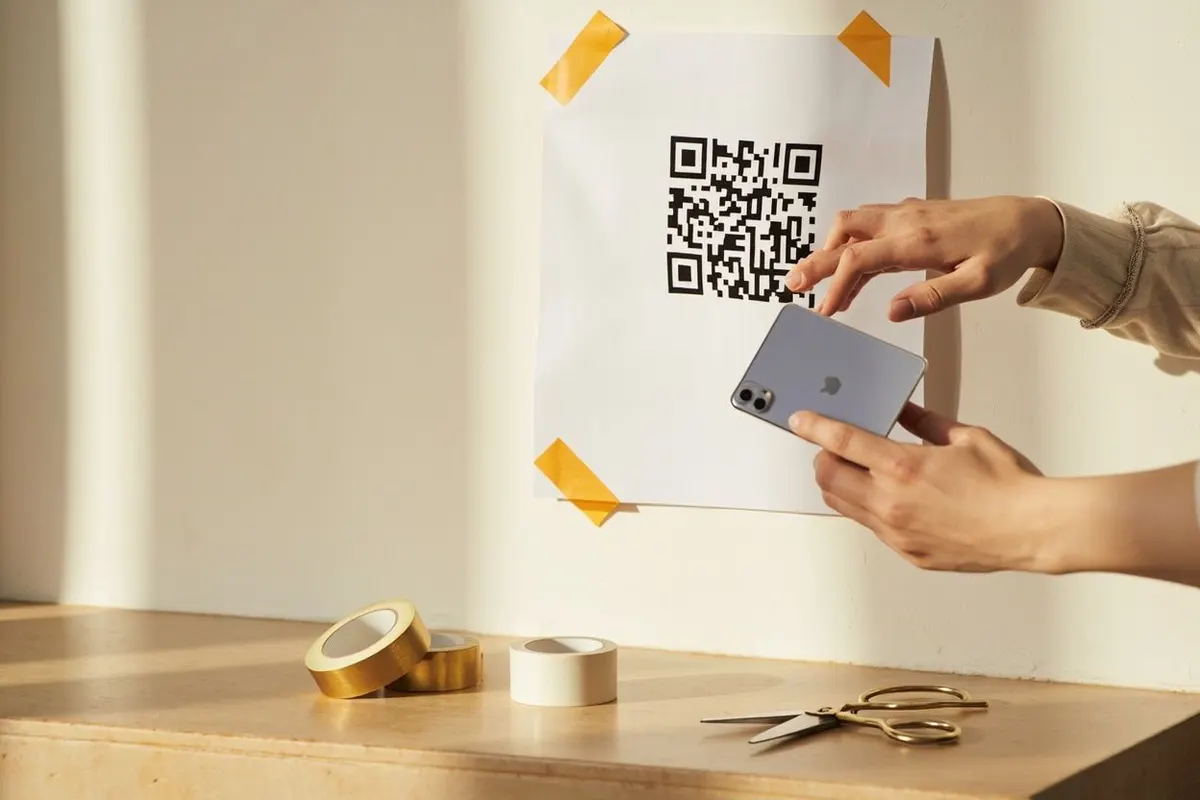
Test with a phone that has not saved the network. A phone that already knows the password can hide an error in the code. Scan the downloaded image, accept the connection prompt and open a webpage.
If the phone reads the code but cannot connect, check the network name, password and security setting. Camera support varies. Enterprise logins and captive portals may need extra steps that a standard Wi-Fi QR cannot supply.
Give the code a useful home
Add a short label such as “Guest Wi-Fi” outside the white border. Include the network name for anyone who prefers to connect manually. Put the card within easy reach.
Print one copy and test it in place before printing the rest. Small codes, dim lighting and reflections from a glossy holder can make scanning harder.
Common questions
Does a Wi-Fi QR code work on iPhone and Android?
Both handle it natively. iOS has read Wi-Fi QR codes from the built-in Camera app since iOS 11, and Android since version 10. Older Android phones may need a separate scanner app, so keep the network name and password printed in small text beside the code.
What happens to my QR when I change the Wi-Fi password?
It stops working. The password is encoded inside the image, not fetched from your router, so a password change means generating and reprinting the card. If you rotate the guest password regularly, print the card on something you do not mind replacing.
Is it safe to put a Wi-Fi QR code on the wall?
Anyone who photographs the code can decode the password with any scanner, so treat the printed card exactly like the password written in plain text. Use the guest network rather than the one your own devices and network storage sit on.
Why does the QR connect but show no internet?
The code only carries the network name, security type and password. Captive portals that ask guests to accept terms in a browser still appear after joining, and a router with no upstream connection will still accept the device. Test by forgetting the network first, then scanning.