Design and print
QR code not scanning? How to fix it
Find out why a QR code will not scan, from low contrast and a cropped border to a broken link, and fix it before you print another batch.
Work out which part is failing
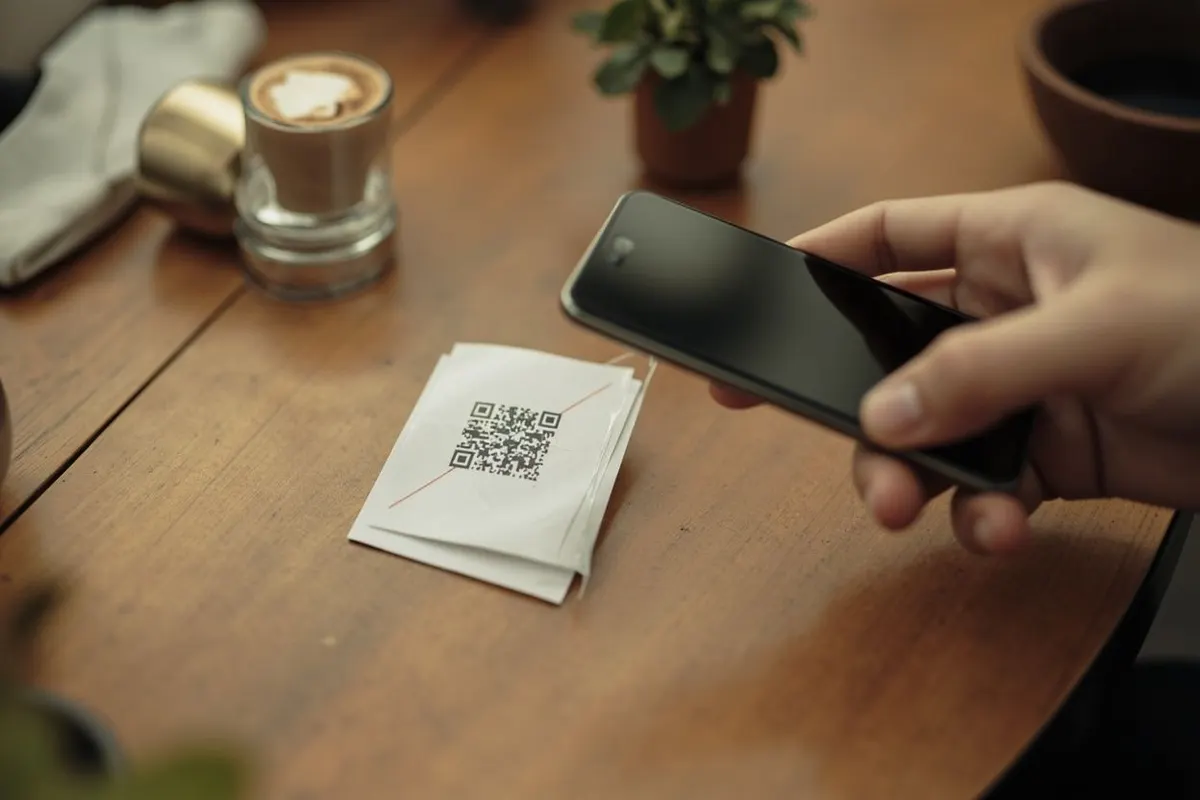
A QR problem is one of two kinds. Either the phone cannot decode the pattern, so the camera shows nothing, or it decodes the code and then opens an error, the wrong page or nothing useful.
Test with two different phones, ideally an iPhone and an Android phone. If neither reacts, the problem is the image or the print. If both show a link but the page fails, the problem is the destination. If one phone works and the other does not, look at that phone’s camera settings and at glare.
When the phone cannot read the code
Work through these in order. Most failures are one of the first four.
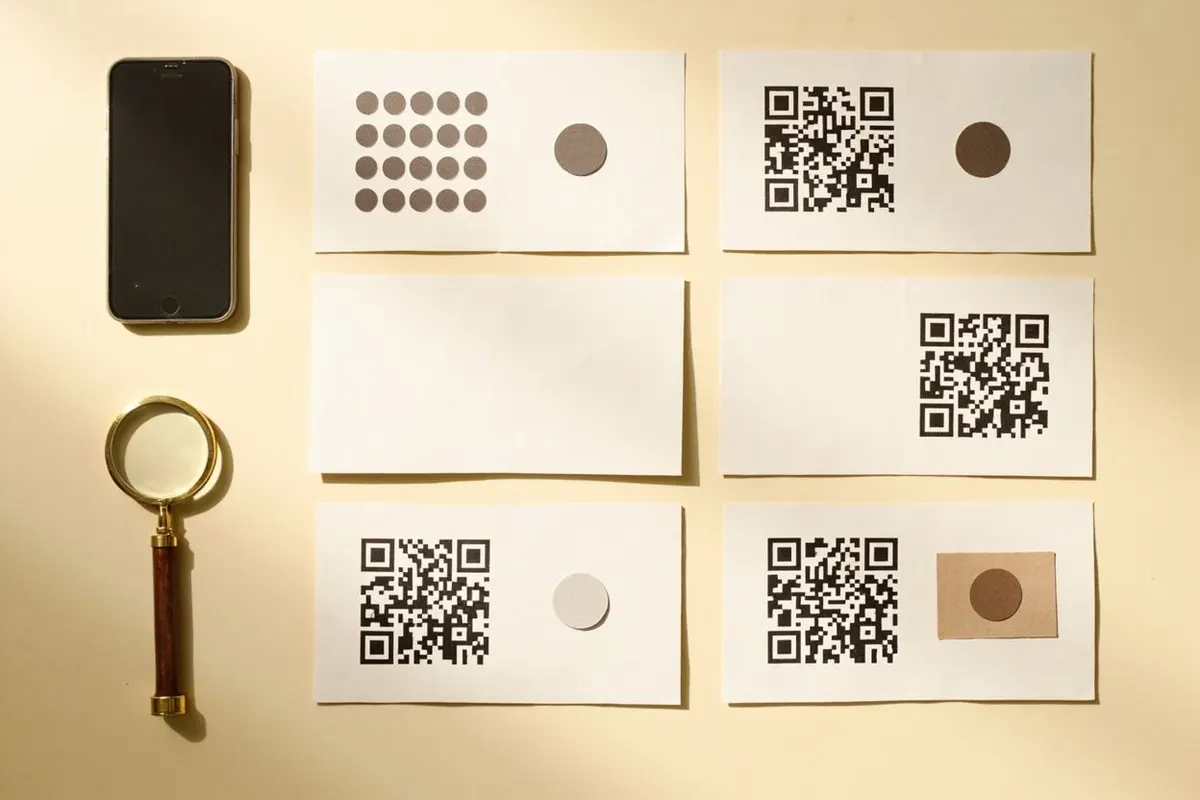
- Low contrast. The code must be much darker than its background. Light grey, pastel or yellow codes and busy photo backgrounds fail on many phones.
- Inverted colours. A light code on a dark background is allowed by the standard, but many camera apps will not read it. Use a dark code on a light background.
- Cropped quiet zone. The code needs a clear margin about four modules wide on every side. Designers often trim it or push text into it.
- Too small for the distance. A rough rule is one unit of code width for every ten units of scanning distance, so a poster read from 2 m needs a code around 20 cm wide.
- Too much data. Long links and full contact cards make dense codes with tiny modules. Shorten the link or trim fields, then print again.
- Logo too large. A logo covers part of the pattern. Keep it small and central, and test after adding it.
- Blurry or stretched file. Screenshots, low-resolution PNGs and uneven scaling blur the modules. Export SVG or a large PNG and scale it proportionally.
- Glare and curves. Laminates, glossy stickers, curved bottles and screens behind glass reflect light across the code. Try a matte finish or a flat surface.
- Damage. Scratches, fading and peeling stickers eventually beat the built-in error correction. Replace worn copies.
When one phone fails and another works
On an iPhone, QR scanning is built into the Camera app and can be switched off in the Camera settings. On Android, the camera app or Google Lens handles it, and some older phones need a separate scanner app.
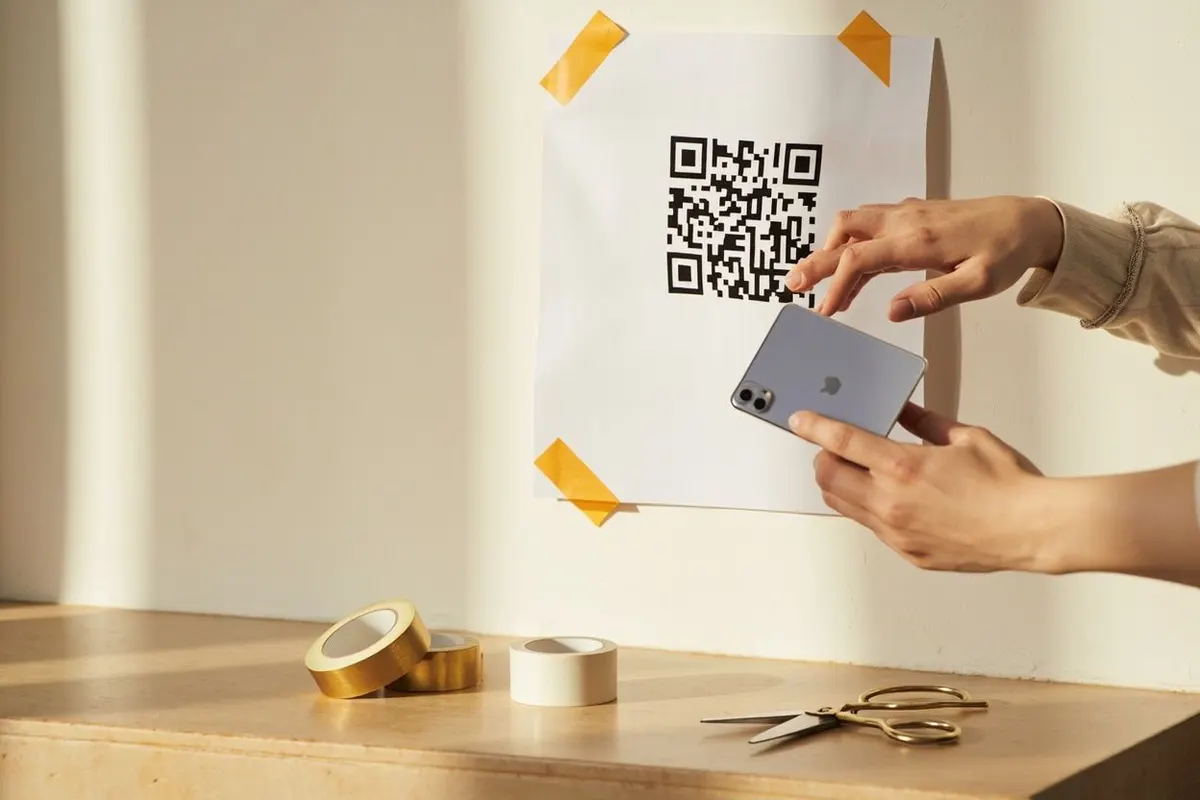
Clean the lens, hold the phone steady for a second and move back rather than closer; many phones cannot focus on a small code held a few centimetres away. In dim light, add room light rather than using the flash, which often adds glare.
When it scans but opens the wrong thing
If the phone shows a link but the page fails, the code is doing its job and the destination is the problem. Check for a typo in the address, a page that moved during a redesign, or a preview link that only worked while you were signed in.
Shared files are a common trap. A Google Drive or Dropbox file set to private shows a request-access screen to everyone except you. Open the link in a private window on mobile data to see what a stranger sees.
Wi-Fi codes stop connecting when the password or security setting changes. Dynamic codes stop redirecting when a trial or plan ends. In both cases the fix is on the other side of the code, or a new code.
Stop it happening on the next print run
Export the code at the size you need, keep the original SVG or PNG, and place it on a flat, matte, well-lit spot with a clear border. Add a short label so people know what they will get, and a plain-text link as a fallback.
Then print one proof on the real material and scan it from the real distance with more than one phone before you order the batch. Our guide to QR code printing covers file formats and sizing in more detail.
Common questions
Why won’t my QR code scan?
Usually low contrast, a cropped white border, a code printed too small for the distance, or glare on a glossy finish. If the phone reads the code but the page fails, the link, the file permissions or a lapsed dynamic plan is the cause.
Why does my QR code work on one phone but not another?
Cameras differ in focus distance and low-light performance, and some phones have QR scanning switched off or need a scanner app. Codes near the limit of size or contrast show the difference first, so make the code larger and higher contrast.
Why did my QR code suddenly stop working?
The code itself did not change; something behind it did. The page moved, the domain lapsed, a file became private, the Wi-Fi password changed, or a dynamic code’s subscription ended.
Can a logo stop a QR code from scanning?
Yes, if it is too large or placed off centre. QR codes carry error correction that tolerates a small covered area, but a big logo on a dense code uses it all up. Keep the logo small and test the final image.