QR code basics
How to make a QR code for a link or website
Paste a link, check the preview and download a PNG or SVG QR code that opens your website, Google Form or document. Free, with no signup.

Start with the right link
A QR code for a link stores only the address you give it, so the address is the whole job. Open the page you want people to see on your phone, then copy the address from the browser or the page’s own share button. Use the final https page, not a preview, draft or admin link that only works while you are signed in.
Shorter is better. A long address full of tracking parameters makes a denser code that needs more space to print. Remove anything after a question mark that the page does not need. If you want to measure visits in your own analytics, add a few campaign tags such as utm_source=flyer instead.
Source: Google Analytics on campaign URLs.
Make the QR code
QRToolset builds the code in your browser as you type. A static link code needs no account.
- Open the website QR code generator and paste the full address, including https://.
- Watch the live preview. It updates as you type, so a stray space or missing letter produces a different code.
- Optionally open Make it yours to change colours or module shapes, or to add a logo. Keep the code dark on a light background.
- Download SVG for print design tools, or PNG for documents, slides and messages. PNG exports run from 200 to 4,000 pixels.
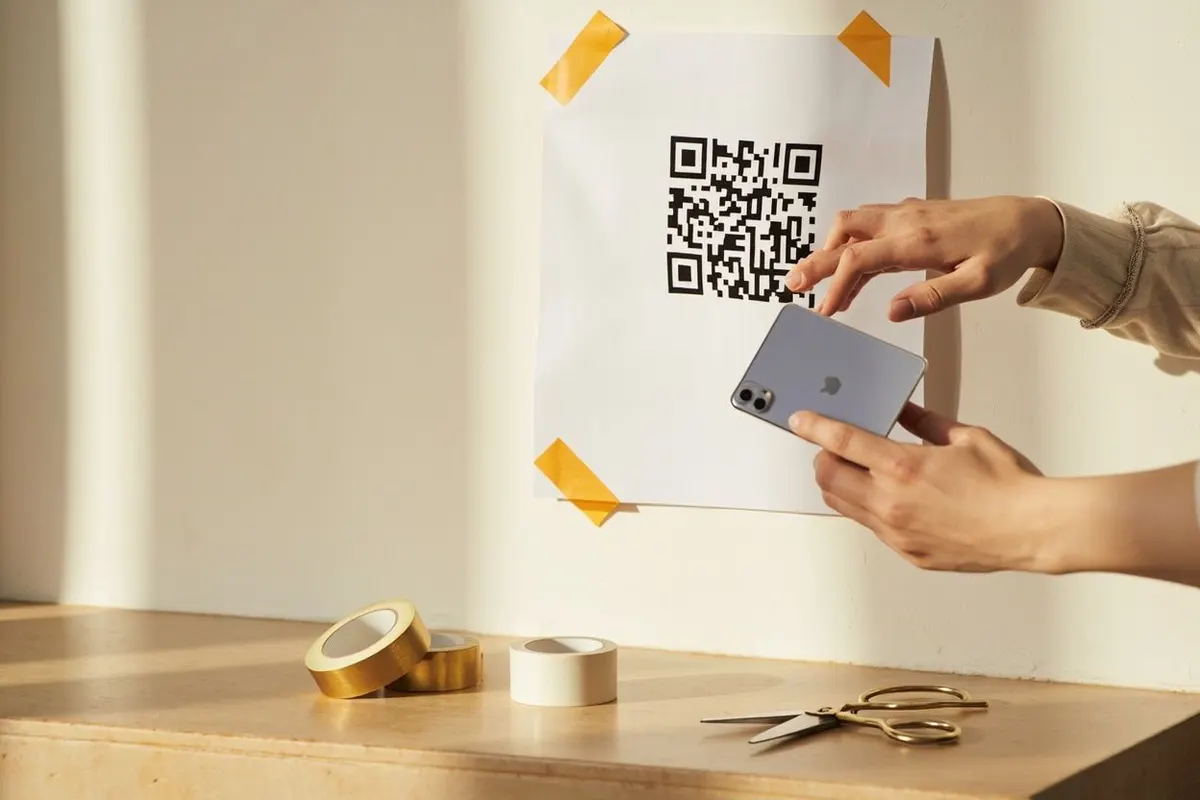
- Scan the downloaded file with your phone, not the on-screen preview, and check that the right page opens.
Making a QR code for a Google Form
A Google Form QR code works the same way, with one extra step: the form must be published before anyone can open it. An unpublished form turns responders away even when the link is correct.
In Google Forms, publish the form, then copy the responder link from the Send or share options. If the form is restricted to your organisation, people outside it will be asked to sign in with a work account, so check the responder settings. Paste the responder link, not the editing address from your browser bar, into the website generator.
Source: Google’s instructions for publishing and sharing a form.
Links that have their own tool
Some destinations work better with a dedicated QR type. Use the PDF tool to upload a document or link a hosted file, the YouTube and social tools for channels and profiles, the Google Review tool for a review link, and the WhatsApp tool to open a chat with a message ready to send.
Details that should work without the internet, such as Wi-Fi logins, contact cards and plain text, belong in their own static QR types rather than a link. Those codes carry the data itself, so there is no page that can break.
Keep the link working after printing
A static link code opens the same address forever. If that page moves, the code breaks, so point printed codes at a stable page on your own domain and redirect old addresses when you redesign.
If you already know the address itself will change, use an editable QR from a paid plan instead. You can change where it goes from your account while the printed code stays the same. For most links, though, a free static code pointing at a page you control is the simpler choice.
Common questions
How do I make a QR code for a link for free?
Paste the full address into a website QR generator, check the preview and download the image. On QRToolset, static link codes are free, need no account and have no scan limit.
Can I make a QR code for a Google Form?
Yes. Publish the form, copy its responder link from the Send or share options and paste it into the website QR generator. Test the code on a phone that is not signed in to your Google account.
Does a QR code for a website expire?
No. A static website QR code has no expiry and works as long as the page it points to is online. Dynamic codes from some providers stop working when a trial or plan ends.
Can I change the link after printing?
Not in a static code, because the address is part of the image. Either point the code at a page you control and change that page, or use an editable QR that lets you change the destination from your account.