Small business
How to create a Google review QR code
Help customers reach the right Google review page. Find your link, make a QR card and ask for honest feedback.
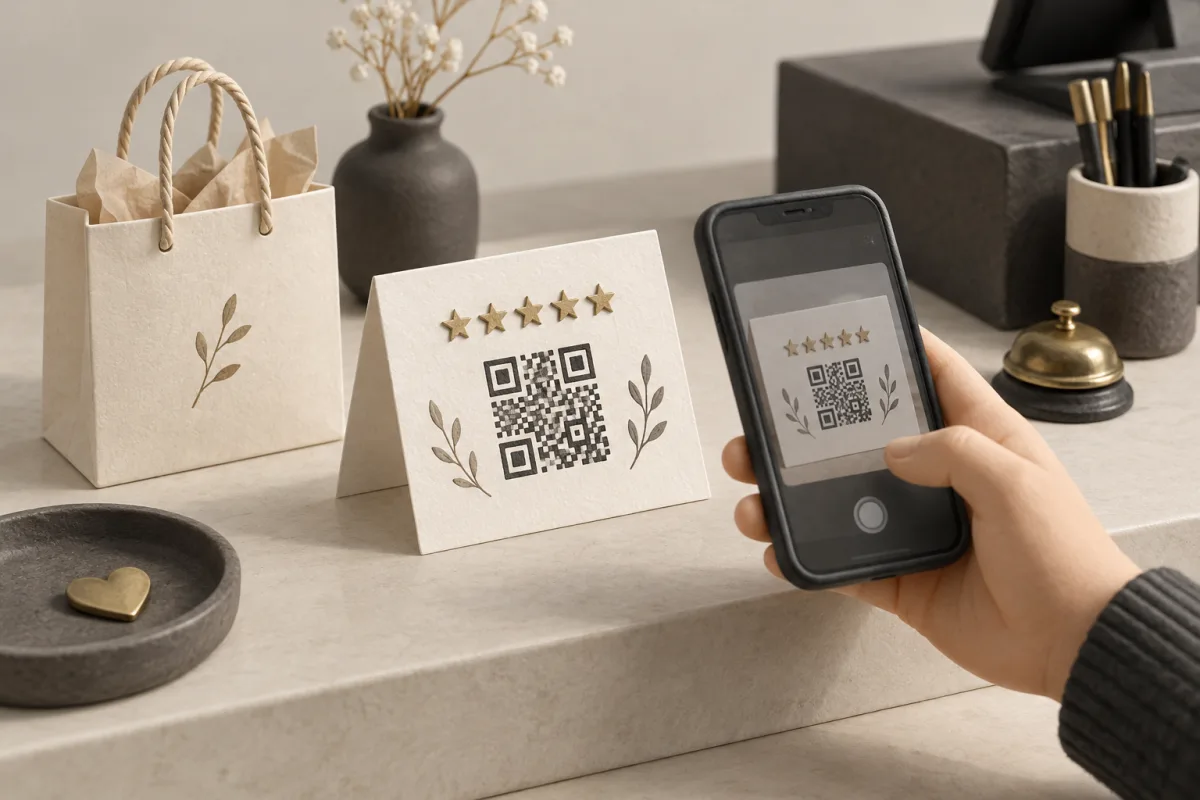
The destination matters more than the design
A useful review QR opens the correct business, not a search page. Start with the review link for the location your customer visited. This makes the next step clear even when nearby businesses have similar names.
QRToolset creates an image from the link you provide. Google controls the review page and may ask customers to sign in. A QR makes the page easier to reach; it does not post a review or guarantee a rating.
Copy your review link
Open the Google Business Profile you manage and find its review-sharing option. Copy the review link and check the location if you manage several branches. Google also offers a QR download through its supported profile interface.
Paste the link into QRToolset to create and save a code on your phone or computer. If the sharing option is unavailable on your device, get the link from a supported profile interface first.
Source: Google’s instructions for review links and QR downloads.
Make an image and test the whole route
Paste the link into the Google Review tool. Save SVG for a print layout or PNG for a message or document. Then test the downloaded file as a customer would.
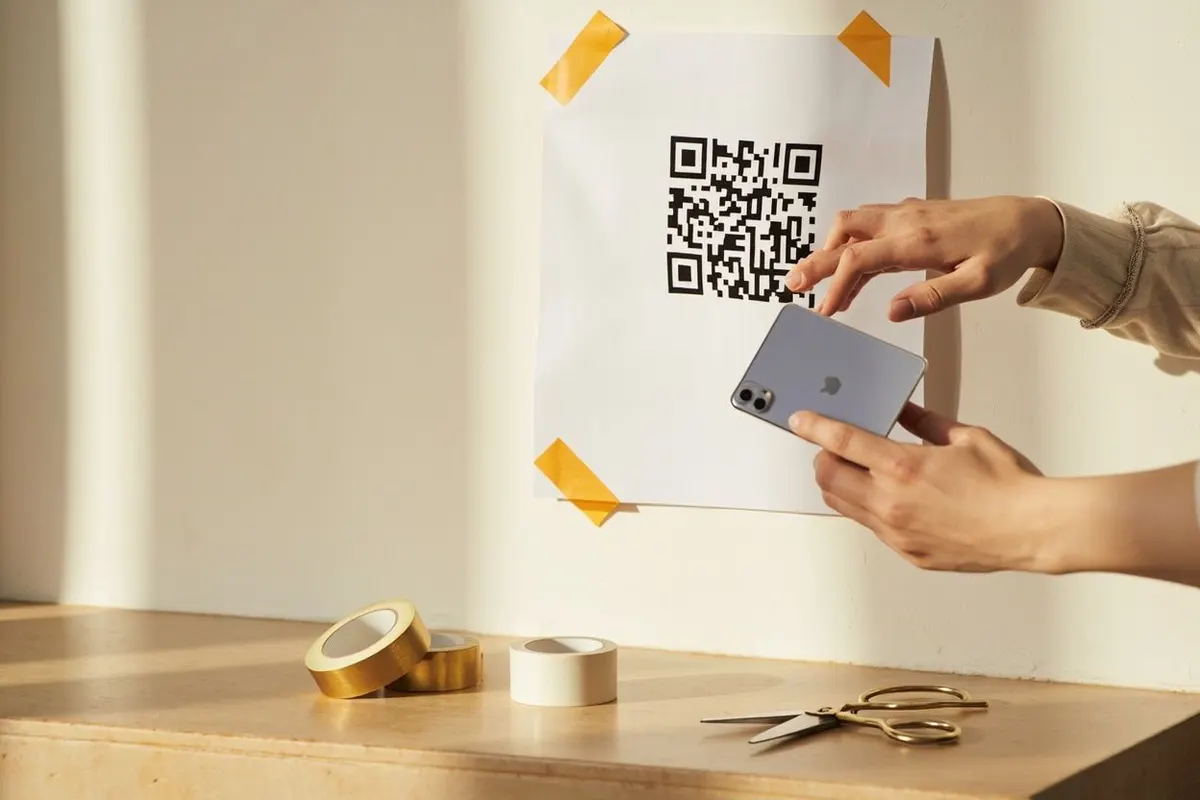
- Scan the downloaded QR with another phone, rather than checking only the on-screen preview.
- Confirm that the business name and location are correct. Continue far enough to see the review experience, without posting a test review.
- Notice any sign-in step so staff can explain what a customer may see. Avoid promising an anonymous or one-tap submission.
- Print a single proof and scan it where customers will actually use it. Keep the white margin clear and check for reflections.
Ask for an honest review
Use a direct invitation such as “Share your experience on Google.” Add your business name so people know where the code leads. Ask after a customer has had a real experience with your business.
Ask for honest feedback without suggesting a score. Do not offer discounts, gifts or payment for reviews, changes to a review or its removal. Check Google’s linked guidance before running a review campaign.
Keep a small record of what you printed
Save the review link, QR image and final artwork together, with a filename that identifies the location. Before reprinting, scan the code and confirm that the correct profile still opens.
If a code leads to the wrong place, remove the card while you investigate. Make a new QR when the encoded link changes. QRToolset does not edit printed destinations or track review scans.
Common questions
Where do I find my Google review link?
Open Google Business Profile, choose your listing, then use Ask for reviews. Google gives you a short g.page link that opens the rating panel directly. The address in your browser bar while viewing the listing is not the same link and lands people on the profile instead.
Can I ask customers to leave a five-star review?
No. Google’s prohibited content policy bans incentivised and solicited-rating reviews, and a business caught gating feedback by rating can have reviews removed. Ask for an honest review and let the rating follow.
Why does my review QR open the listing instead of the review box?
The link was copied from the search result or the profile page rather than from the Ask for reviews panel. Scan the finished code on a phone that is signed in to a Google account and confirm the star selector appears immediately.
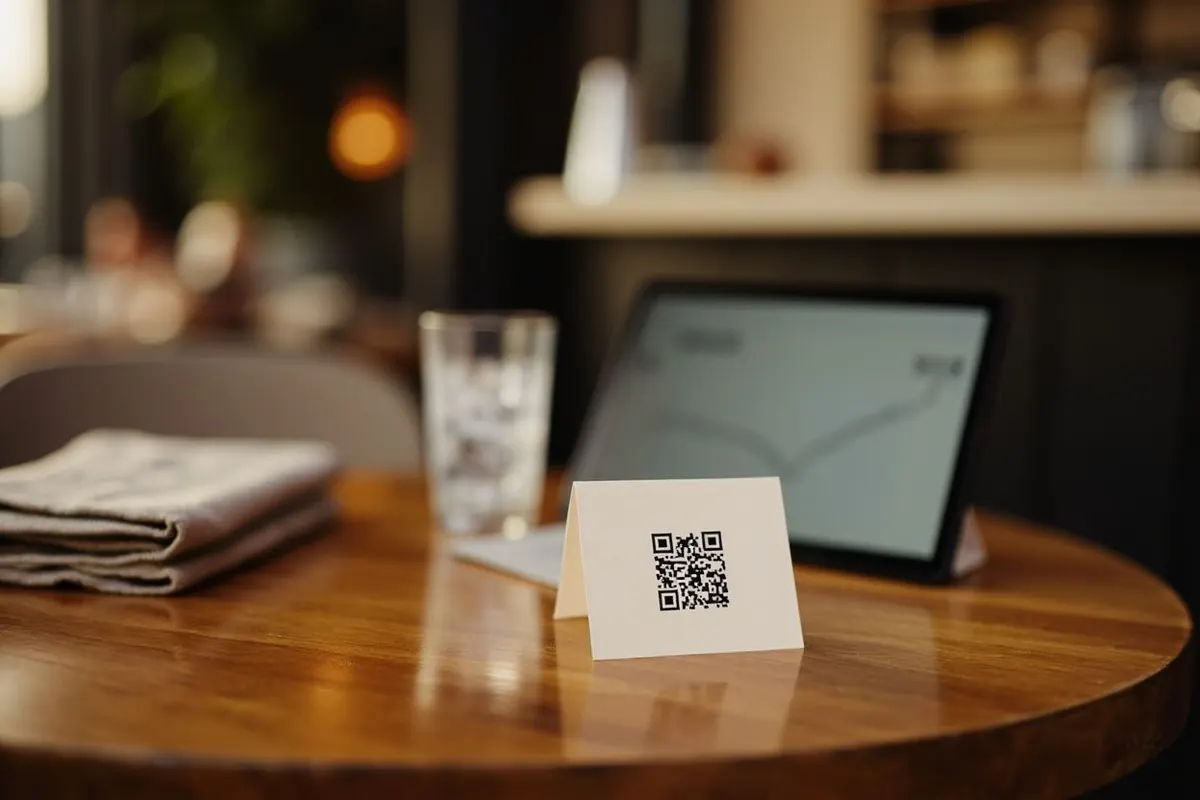
Where should a review QR code go?
Anywhere a customer is already finished and satisfied: the receipt, the counter after payment, a thank-you card in the delivery box. A QR at the entrance catches people before they have anything to review.